

Computers
A Computer is a connected device, server, or container where an Agent can run work. It provides the operating system, files, credentials, network access, and tools required by an Agent.
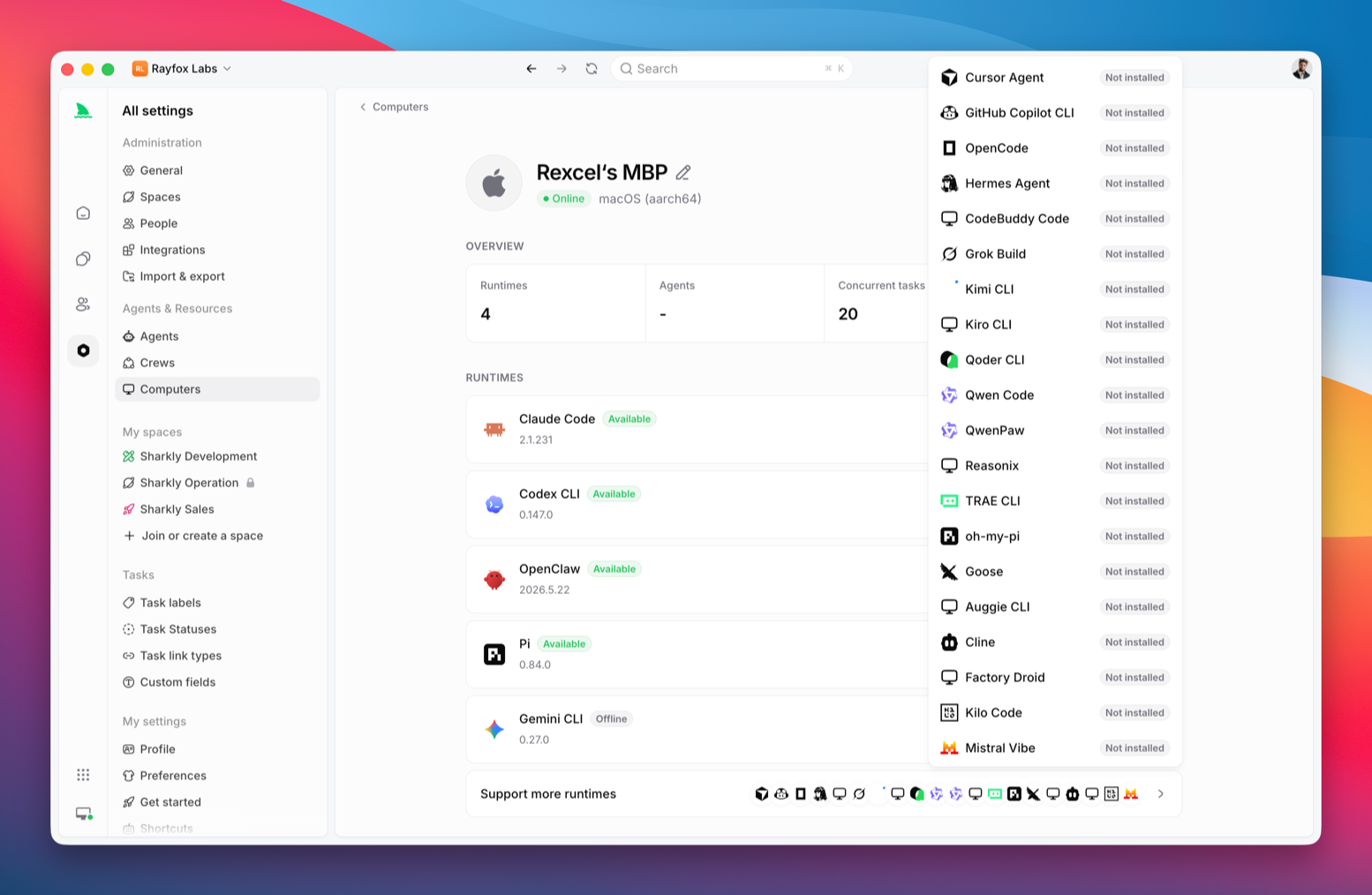
Computer, Runtime, and local service
These terms describe different parts of execution:
- Computer: the connected host. A Computer can expose one or more Runtimes and has its own owner, visibility, status, and task concurrency limit.
- Runtime: a supported Agent execution capability detected on a Computer. Each Runtime identifies a provider and reports its own connection state. An Agent needs a usable Runtime before it can run.
- local service: the background process that runs on the Computer. It registers the Computer, detects Runtimes, sends heartbeats, receives queued runs, prepares directories, starts Agent tools, and reports progress and results.
The local service initiates the connection to the server, so a typical setup does not require an inbound port.
Connect and register a Computer
When you use the Sharkly desktop app to connect a new Computer, the CLI / local-service method is recommended and expanded by default. In the web app, the desktop-app method remains the recommended entry point. This changes the presentation order only; the platform-specific connection steps remain the same.
Create a one-time install token from the Computers page, then run the registration command on the target Computer:
Registration records the Computer in the selected organization and starts or restarts the local service unless the command is told not to. The local service then detects installed Runtimes and reports them with the Computer.
After registration, confirm that the Computer appears and that at least one supported Runtime is available. A connected Computer without a usable Runtime cannot execute Agent work.
If connecting a Computer is rate limited, the app waits and retries automatically. You can cancel the wait. This is not a local-service failure, so do not reset or repair the local service. If you cancel and try Connect again, you still need to wait until a retry is allowed. A registration command in the terminal that hits a long wait tells you to try again later instead of holding the terminal.
Runtime capability status
Computer detail reports a capability status for each Runtime:
A Computer being online does not mean that a Runtime is online or executable. Runtime Offline means that the Runtime or local service is temporarily disconnected; it does not mean that the tool is uninstalled and is distinct from Not detected. The Computer's own Offline status is separate. When a Task cannot start, check the selected Runtime status and then the Computer connection.
When you create or configure an Agent, unavailable Computers or Runtimes in the list include View computer after you hover, so you can open the details. The picker lists Runtimes already available on that Computer; it does not mean those are the only supported Runtimes. Use More supported Runtimes to open Computer details and install other supported Runtimes.
Install a Runtime
When a Runtime shows Not detected, install the corresponding tool on that Computer before asking the local service to detect it again. Some Runtimes also have a desktop app; Sharkly uses the CLI version, and the detail page tells you to install the CLI rather than the desktop app. Runtimes without a separate CLI, such as OpenClaw, do not show this notice. User-visible Runtime names follow the product UI.
If it shows Detection failed, follow the detail-page guidance and rescan or test the connection after correcting the configuration. An online Computer only confirms that the local service is sending heartbeats; it does not make every Runtime executable. If detection or chat reports that a Runtime is unsigned-in or unauthorized, run the command shown on the page in a terminal on that Computer. That login is separate from sharkly login --token.
The Computer detail page provides an Official installation guide link for every Runtime currently exposed by the Runtime selector and support matrix. The selector and vendor links can change, so use the link shown for the selected Runtime rather than relying on a fixed provider list or copying an unverified install command from this page.
After installing the tool, return to Computer detail and use the available rescan or connection-test action to confirm that the local service can see the Runtime. The exact button name, supported platform, and available Runtime set follow the product UI and current support matrix.
Configure a detected Runtime
The Computer owner can configure the executable, default additional arguments, and default environment variables for a detected Runtime. The executable can replace the detected default location. These values provide startup defaults for Agents that use the Runtime; they do not create a custom ACP Runtime. A matching Agent-specific argument or environment variable takes precedence over the Runtime default.
Before saving an executable, Sharkly checks that it is executable and compatible with the Runtime's provider and version. If that check fails, the existing configuration remains unchanged. After you enter and successfully save an executable path, the UI should show that manual path, not Auto-detected, and later auto-detection does not overwrite it. After changing a Runtime, use Test connection or rescan it to confirm that the local service can still start it. If the tool is uninstalled, rescan it so its status can update.
After you change an executable, the local service may briefly restart and recheck the configuration. Restarting and rechecking is an intermediate state, not a final failure. Do not submit conflicting recovery actions again while it is in progress. Wait for success, an explicit failure, or a timeout; treat it as an error only after an explicit failure, timeout, or failed recheck. After success, refresh the Computer, Machine, and Runtime information.
No Runtime is a Computer-level summary that the Computer is not currently reporting a Runtime to select. It is not the same as an individual Runtime state such as Not detected, Detection failed, or Available. Runtime Offline also does not mean Not detected. Whether or not the Computer is online, use the selected Runtime's check or connection test to establish that it can run.
Enter only the configuration the product asks for. Do not put passwords, tokens, API keys, private keys, or other sensitive values in the executable, additional arguments, or unrelated fields.
Configure a custom ACP Runtime
If the local service does not detect an execution capability, add a custom ACP Runtime from Computer detail:
- Configure the Runtime icon, name, and startup command.
- Save the Runtime and select Test connection.
- After it is configured, edit those values when needed or delete the custom Runtime when it is no longer used.
Enter only the configuration requested by the product. Do not place passwords, tokens, or other sensitive values in unrelated fields or startup commands.
ACP adapter isolation
When an ACP adapter lacks a compatible Node.js environment, Sharkly first reuses an existing compatible environment. If one is not available, it can prepare a product-managed isolated execution environment for that adapter only. It does not modify the system-wide Node.js or npm, shell configuration, project directory, or the user's version-manager configuration.
If environment preparation fails, Sharkly keeps the original environment and provides manual repair guidance instead of replacing the existing configuration.
On macOS, if Codex is not installed on its own, installing the ChatGPT desktop app is enough for the local service to register the app's bundled Codex CLI as a Runtime. Prefer a Codex you installed and put on PATH; the app bundle is only a fallback. This does not apply to Windows or Linux.
Computer commands
Use the sharkly computer command group to inspect and manage registered Computers:
listshows Computers registered for the current organization.showreturns the Computer and its Runtimes.usageandactivityinspect a specific Runtime.pingchecks whether a specific Runtime can complete a round trip through the local service.updaterequests a CLI update for a specific Runtime.
Use --organization-id when the selected CLI organization is not the one you want to inspect.
Status and registration state
A Computer is Starting while the local service on this computer is starting or restarting. That is not Offline: the Computer and related entries should show the same starting state. A Runtime that is not detected, failed detection, or uninstalled keeps its own status and does not switch to Starting. In the web app, when this computer is not the local machine, the status dot in the lower left stays gray. An Agent conversation bound to this computer may say the Computer is starting and ask you to wait. After Restart service, the Computer enters Starting; a successful restart shows Restart successful.
A Computer is Upgrading while the desktop app is updating the local service. That is not Offline and not a failure. After the upgrade finishes, the Computer comes back Online without another Start. If you stop it during or after the upgrade, it stays Stopped. If the upgrade fails, follow the in-app prompt and try Start again.
A Computer is Online when the server is receiving current heartbeats from its local service. It is Offline when those heartbeats stop.
A Runtime also reports whether it is online or offline. These states are related but not interchangeable: a Computer can be online while no supported Runtime is available, and an Agent cannot run until its selected Runtime is usable.
During first-time setup, the desktop app can also show transitional states such as starting the local service, waiting for registration, or reconnect required. Registration is complete only when the server has accepted the connection and the Computer appears in the organization.
Updates, restart, and repair
In desktop settings you can Check for updates. When a newer version is found in the background, the update finishes automatically and does not pop up a new-version toast. That prompt appears only when you check for updates yourself.
Computer detail can also prompt you to:
- Restart update: a new version is already downloaded on this computer, but the app still needs a restart to finish the upgrade.
- Update now: the CLI on a remote Computer is out of date. Choose Update now, or run the command shown on the page on that Computer.
If the lower-left entry shows an unregistered This computer (local), open it and use Repair and reconnect. If the local service fails to start, the product shows repair steps and a command you can copy. If a community channel is configured, you can still contact it from there. Copy follows the product UI.
When the local service fails to start, the repair dialog explains what went wrong, offers One-click repair and Repair from terminal, and lists the original error so you can troubleshoot it. If the status shown in the UI and the actual connectivity disagree, for example a Runtime shown as available while the product asks you to repair the local service, trust the result of Test connection or a rescan.
Occupied local service on desktop
If Start on this computer is blocked because the local service is occupied:
- occupancy from this product recovers in the app, without sending you to a terminal;
- occupancy from another program shows the process name and how long it has been running, and you must confirm before ending it and starting;
- if the occupier cannot be identified, Sharkly explains why and does not end an unknown process.
If Start fails, try Start again. When an older or leftover local service remains, follow the in-app prompt and retry.
If in-app repair such as Reset and start or Retry Start fails outright, the primary action becomes Repair and reconnect, which can open the existing terminal reconnect steps. The original repair actions remain available. Not every failure automatically opens the reconnect guide.
Startup method
Computer settings include a Startup method:
- Start at login: start the local service after you sign in to the system.
- Start when app opens: opening the desktop app starts the local service; fully quitting the app stops it.
- Manual start: you start or stop it from the UI or CLI; do not expect opening the desktop app to start it.
When Start when app opens is selected, the description is: starts when the app opens and stops when the app fully quits. If changing the startup method fails, the previous method stays in effect.
After you stop the service from the CLI or the UI, the desktop app does not immediately start it again during that session because it looks like an unexpected disconnect. After you fully quit and open the app again, the current startup method decides whether it starts.
Restart service and Stop service
Computer detail can Restart service or Stop service for the local service:
- Restart service restarts the local service. Runtimes and Agents on this Computer go offline briefly.
- Stop service stops the local service. After you stop it, Runtimes and Agents on this Computer stay offline.
This is separate from Start in the web app. After you stop the service, start it again before expecting the Computer to come back online.
If a Computer is offline or registration stalls, check that:
- the target Computer is powered on and connected to the network;
- the local service is running and authenticated;
- the CLI is current enough to connect;
- the selected Runtime is installed and available to the local service;
- required repositories, credentials, directories, and commands are accessible on that Computer.
When connection, Start, or Runtime detection is stuck, the page can offer Help to open the docs. If a community channel is configured, it also offers a way to contact the Sharkly community.
Prevent sleep
Prevent sleep appears only on this computer in the desktop app. It is not available on a shared or remote Computer.
When it is on, the machine stays awake while the display can still sleep under the system settings. This is not keep-display-on. Use it so local tasks and Agent connections are not interrupted by system sleep.
Duration options:
- Always
- 5 minutes
- 30 minutes
- 1 hour
- 2 hours
- 5 hours
- 8 hours
The setting turns off when the duration ends. Changing the duration restarts the timer. Always does not expire.
Keep running with lid closed is a separate option. It appears only on macOS, and only when the system allows it. If the machine is unplugged, the product asks you to connect power first — do not treat the option as already in effect.
Visibility and ownership
Visibility controls who can see and use a Computer in an organization:
- Personal: available to the owner.
- Organization: available across the organization.
- Space: available through the selected Spaces.
Ownership is separate from visibility. The owner controls the Computer itself, can transfer ownership to another person in the organization, and is the only person who can delete it. Organization or Space administrators may be able to repair shared access settings without becoming the owner.
The owner can also Unbind runtime for one Agent, or Unbind all, from the Agents area on the Computer detail page. This is how the owner reclaims the Computer without deleting it:
- The Agent stays; it is not archived or deleted. This Computer is cleared as its execution target, so it must choose a Computer again before it can run.
- Active runs are cancelled. Assigned tasks need reassignment.
- Unbinding does not grant full edit access to someone else's Agent.
Confirmation copy follows the product UI. Deleting a Computer can still be blocked while an active Agent is bound; unbind first, then delete.
Use Personal visibility for a personal device or private credentials. Use Organization or Space visibility only when the host and its credentials are intended for shared Agent work.
Allowed Organizations
The owner of a local personal Computer can also control which Organizations may use it:
- All Organizations allows Organizations where the owner is currently a member, including Organizations the owner joins later.
- Selected Organizations allows only Organizations explicitly selected for the Computer.
Only the Computer owner can change this setting. Being an Organization Owner or Admin does not grant control of another person's personal Computer.
Visibility and allowed Organizations are separate restrictions: visibility determines who can see or select the Computer within an Organization, while allowed Organizations determines where that local personal Computer can be used.
If this Computer is already connected in one Organization, switching to another Organization that is not allowed should say the Computer is not allowed in the current Organization, and offer Set allowed organizations. Do not treat this as Starting, waiting to sync, or a missing Runtime, and do not use Repair and reconnect or install-and-register as the main path. The setting entry opens this Computer's details in an allowed Organization and focuses allowed Organizations. Add the current Organization, save, then return to that Organization to use it. After you transfer ownership, allowed Organizations may include only the new owner's current Organization; switching to another Organization uses the same prompt.
Concurrency and working directory
A Computer can serve several Agents. Tasks may queue when the Computer is offline, the selected Runtime is unavailable, Computer or Agent concurrency is full, a specified in-place directory is busy, or repositories, credentials, or required commands are unavailable.
If the Agent uses Create temporary directory, or Specified with Run in isolated worktrees, tasks typically run in separate Git worktrees and do not write to the same working tree. Isolated mode supports one directory.
If the Agent uses Specified with Run directly in this folder, one directory usually serves one run at a time. When no directory is free, the run waits for a local directory.
Default concurrency:
- Specified directories running in place: default concurrency matches the number of configured directories.
- Create temporary directory, or Specified with isolated worktrees: default concurrency is 50% of the Computer limit.
Higher concurrency uses more CPU, memory, disk, and network. Working-directory modes and run states are covered in Agent task execution.
Disk usage and automatic cleanup
Agent runs leave working directories, caches, and artifacts on the Computer. Configure automatic cleanup in the desktop local-service settings or Computer cleanup settings.
The settings include:
- Cleanup frequency (hours)
- Terminal run retention (days)
- Minimum free space (GiB, 0 disables)
- Additional repository cache retention after eligibility (days)
The default is active: terminal runs such as completed or canceled work become eligible after about 7 days. You can also set a minimum free-space threshold (conservative default 10 GiB; 0 turns it off). When free space is below the threshold, cleanup only reclaims the same safe set, preferring larger items.
Automatic cleanup does not remove:
- running or queued work;
- pinned runs;
- failed runs that still need investigation;
- nested Agent caches such as
~/.claude/worktrees.
Restart the local service or re-register the Computer after saving. Do not delete local-service directories you do not understand.
For an immediate check or a one-off cleanup, use the CLI:
daemon cleanup is a dry run unless --confirm is present. The desktop policy and the CLI commands complement each other; neither replaces the other.
Remove a Computer
Deleting a Computer removes its registration and attached Runtimes. Deletion is blocked while an active Agent is still bound to one of those Runtimes. Reassign or archive those Agents first, then delete the Computer as its owner.